How to Transfer Music from iPod to Computer
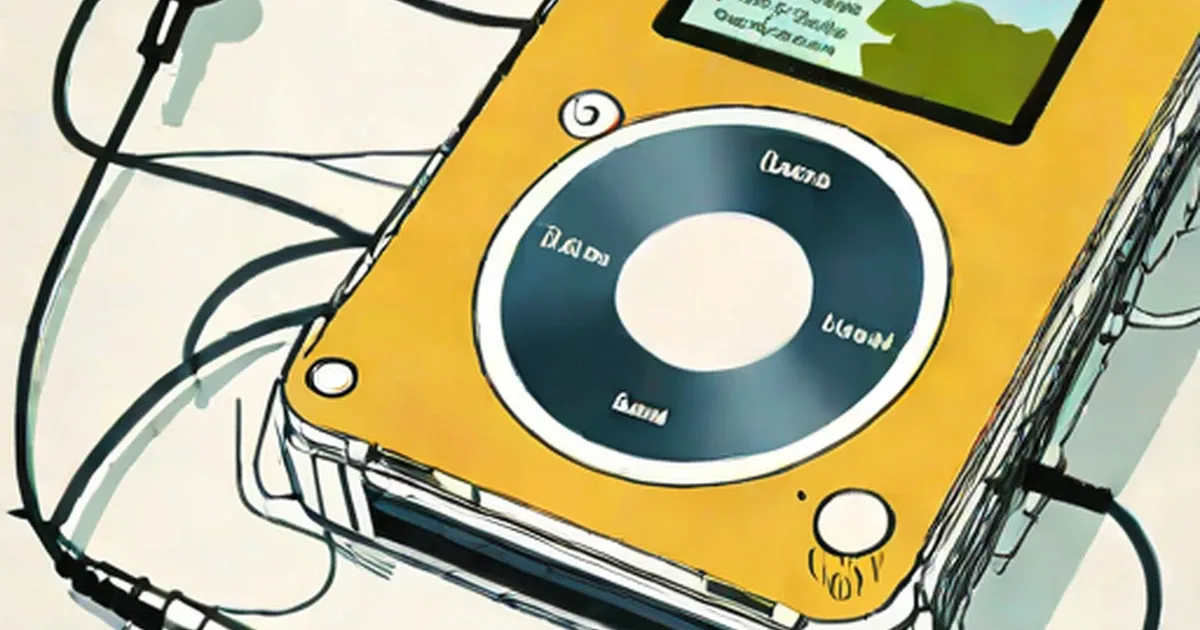
If you want to transfer music from iPod to computer, there are two methods of doing it; with using the appropriate software or simply copying and pasting the iPod files into your PC’s hard drive. Read on to know about transferring music from iPod to computer.
A time may come, when we have all our music stored on the iPod; and the music stored on the computer is lost, deleted, or corrupted. What do we do then? In such a situation, if you want to get your audio files back into your desktop computer or laptop computer, you will have to copy the files from the iPod onto your computer’s hard drive.
Transferring Music from iPod to Computer There are many people who have been using iPods from years, but do not know how to transfer music from iPod to computer. This may probably be, because of not having a need to do so. All Apple iPod users know how to transfer files from their computer to the iPod, but some do have a misconception that copying audio
from the iPod is not at all possible.
Apple Computers
, the company that manufactures iPods is well-aware of the music piracy, which is having a negative impact on the music industry and hence they have not allowed easy music transfer from the iPod to another computer. If you want to transfer music from an MP3 player to the hard drive, you simply have to open the MP3 folder in your system and copy and paste the files you want. However, if you want to transfer music from iPod to computer, the procedure is slightly different.
There are two methods of copying music from the iPod onto your computer. One with a third-party software, which may be available for purchase online, or at your local computer shop, and the other by copy-pasting files from the iPod to the computer. Let us know how to transfer songs from iPod to computer.
Read more on:
- How to Transfer Music from a Computer to an MP3 Player
- How to Put Music on an iPod
How to Transfer Music from iPod to Computer?
If you want to transfer music from iPod to computer; you would required an iPod, its data cable, a computer with sufficient space to store the files, and Apple iTunes software.
Enable Disk Use
For accessing the music files in your iPod, you necessarily need to enable the iPod’s disk use. For doing so, connect your iPod to the computer using the data cable. Allow iTunes to open automatically; and if it does not, open it manually. After iTunes recognizes the iPod, click on ‘Continue’ in the interface. Click on ‘Summary’ in the iTunes interface, check the ‘Manually manage music and videos’ option, and click on ‘OK’ and ‘Apply’ located at the bottom of the interface. This will enable the iPod’s disk use.
View Hidden Folders Now that you have your iPod connected with the disk use enabled, you can go to the next step. Click on ‘My Computer’, and locate the iPod’s drive. To see the music
files, you will have to first view hidden files. For viewing hidden files; select the ‘Tools’ option on the menu bar, select ‘Folder Options’, then ‘View’, click on the ‘Show hidden files and folders’ option, and then ‘OK’.
Locate the Music Files Double click on the iPod’s drive, and now you will be able to see the ‘iPod_Control’ folder in which the music files are stored. In the ‘iPod_Control’ folder, locate the ‘Music’ folder, and double click on it. You will see several folders named such as F00, F01, F02, F03, and so on. View any one of its contents, and you can see the audio files
. However, the names of the music files will not be displayed; but you can see the artist, file duration, album, etc.
Copy-Paste Files in Your Computer
Copy-paste the files that you want in a folder on your hard drive. At this point of time, you would be thinking how the file names are to be renamed and identified. However, the best option is to open the saved folder in Apple iTunes. After doing so, you will have all your music files sorted out in the iTunes music library. In the library, you will be able to view the names of the files.
Read more on:
- How to Transfer or Copy Music from iPod to Computer
- What is the Difference in an iPod and an MP3 Player
This is the procedure to be followed, if you want to transfer music from iPod to computer. If you do not want to use this way of copying music, you can use an appropriate iPod file management software. The easy-to-use interface of these applications will allow you to effortlessly copy all your music to the computer.